Expose
Expose service is part of the Alchemy ecosystem. Its role is to expose assets to the Internet.
Service wraps the following end projects:
- Expose API (backend)
How it works
First entrypoint is the React app with one main route:
/{publication-id}
The React app displays a loader while querying the expose API to fetch the publication:
GET <API_HOST>/publications/{publication-id}
If there is no protection, the response will contain all the publication payload. Otherwise the response will be limited to protection method:
{
  "id": "123",
  "securityMethod": "password | authentication"
}
Then front (React) application will display the according authentication method and request the publication payload again:
- with password:
GET <API_HOST>/publications/{id} --header "Authorization: Password {password}"
In this example we access the publication at:
https://client-url.com/gallery/123
Sequence
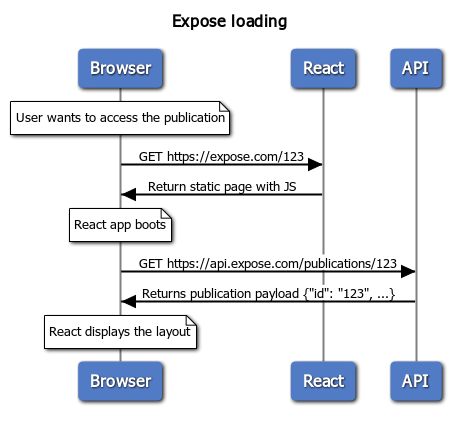
```sequence title Expose loading
note over Browser: User wants to access the publication
Browser->React: GET https://expose.com/123
React->Browser: Return static page with JS
note over Browser: React app boots
Browser->API: GET https://api.expose.com/publications/123
API->Browser: Returns publication payload {"id": "123", ...}
note over Browser: React displays the layout
```
Definitions
At the top level, we have layouts:
- download (display thumbnail while downloading the whole package)
- gallery (simple web gallery)
- lightbox (an extended web gallery with actions on files)
At the second level, we have themes. Themes are declined graphical versions of layouts. A theme should be implemented for each layout.
Direct URL access
We can define a unique URL path for an asset:
{
  "id": "123",
  "assetId": "asset-unique-id",
  "alternateUrl": "a/b/c"
}
Asset will be accessible at https://client-url.com/direct/{alternateUrl}.
Setup
Override environment variables defined in .env file:
DEV_MODE=false
EXPOSE_CLIENT_ID=<THE_CLIENT_ID>
Analytics
Add configuration to enable Analytics:
- Go to Expose Admin panel > Settings > Global Config
- Add the appropriate configuration entries (see Analytics options)
Direct URL access
Publications and assets can be accessed directly with slugs:
e.g. GET https://mygallery.com/publication-1/asset-1
In the above example, publication should have a slug property equal to publication-1 and the asset having